DrOwl is a medical platform that provides a safe place to sync, organize, search, and share your digital medical records on-demand.
Once a user securely syncs their medical records, DrOwl uses AI and machine learning to provide users with a Patient Portal based on the Patient’s health records that include trusted, doctor-approved sources of information that is customized for each user and makes their medical information easier to understand. DrOwl users can also share their customized Patient Portal with caregivers or family members to include them in the patient’s healthcare decisions.
Go to the iOS or Google Play stores to download the DrOwl app today to sign-up for an account.



Download the DrOwl app and then open it up and tap the Create Account button on the bottom side of the screen.
Enter your cell phone number, fill in your email, choose a password, and click the green Continue button.
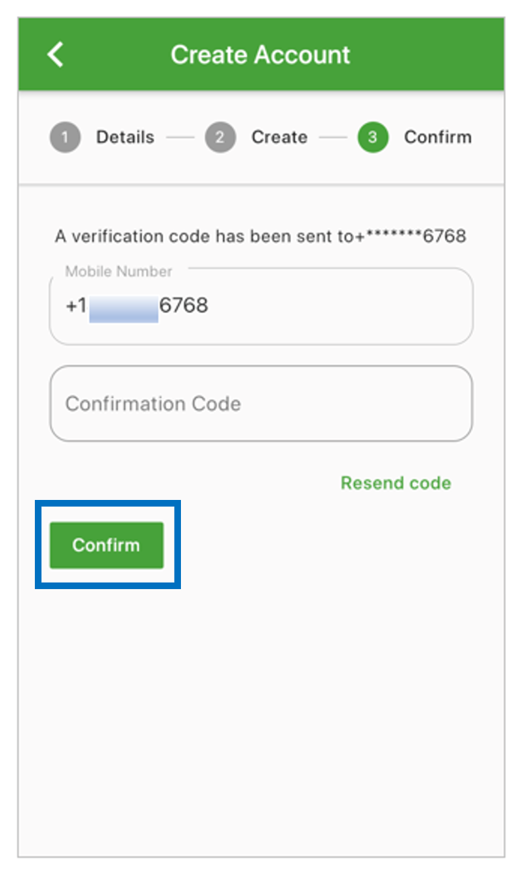
You will then get a verification code sent to your cell phone via a text message to verify your account.

Once you get the verification code, enter it into the confirmation code box, and click the green “Continue” button.
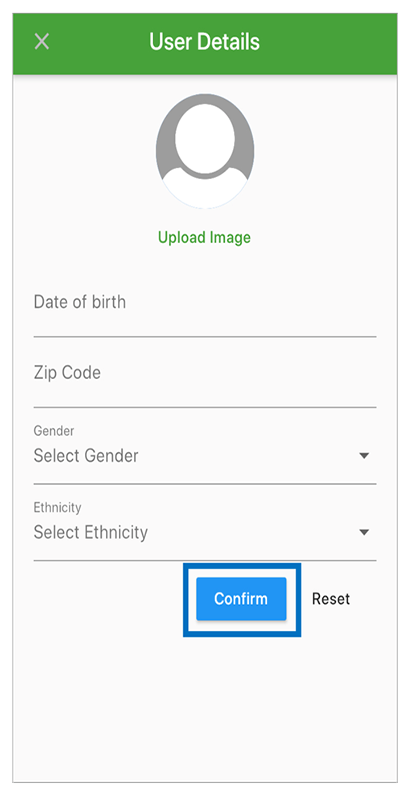
The final step in signing up for DrOwl is to add the user details for yourself into your account. This information is not disclosed to anyone other than you.
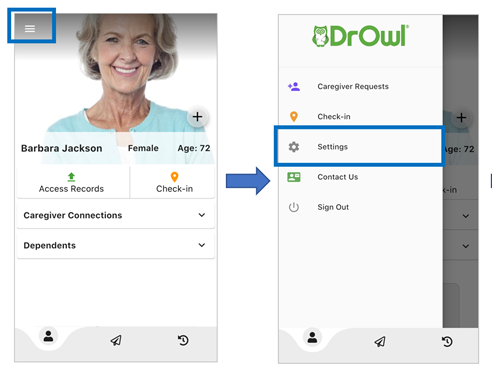
To update your password, touch the Settings icon on the bottom right-hand side to open up the menu, and choose “Update Password.”
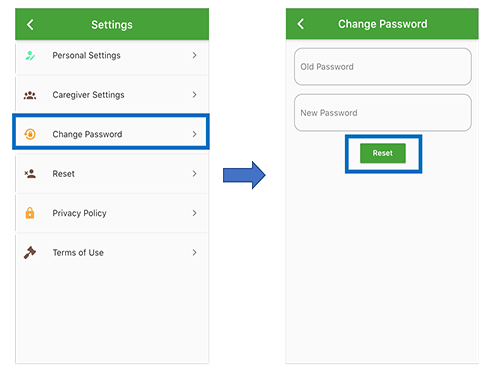
Then add in your old password and choose a new password that you’d like to use going forward. Click on the green “Update” button to finish resetting your password when you are done.
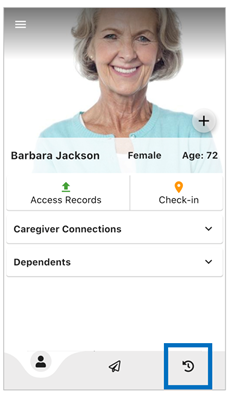
To go to your timeline, click on the “Bell” icon on the top right-hand side of the home screen. This will take you to your timeline where you’ll be able to see notifications for things like:
If you’d like to give feedback, click on the Settings icon in the bottom right-hand corner of the homescreen.

Tap on “Help & Support” from the menu. Fill out the form to contact us, and click on the submit button in to send it to us.
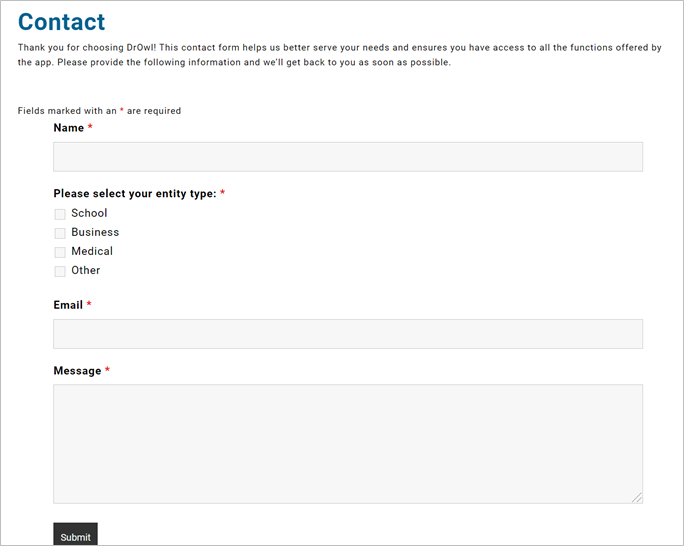
Please know that we really appreciate your feedback in helping us to make it the best possible community experience on DrOwl for everyone!
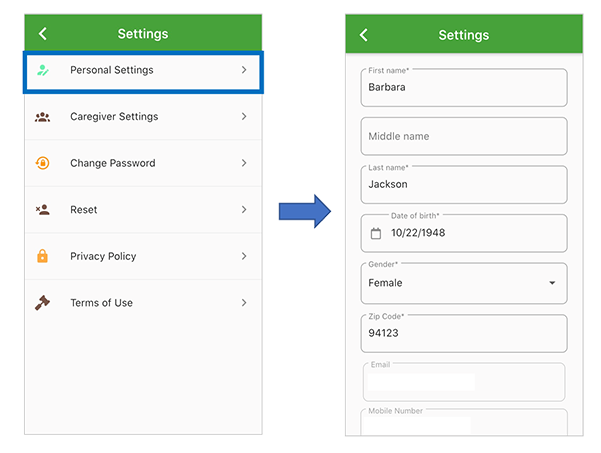
To update your account profile, go to the homepage of the app, and touch the Settings icon on the bottom right-hand side of your screen to open up the menu.

From the Settings menu, choose Edit personal information, and make the changes that you’d like to make. When you are done making your changes, click on the “Save Changes” button to finish updating your user profile.
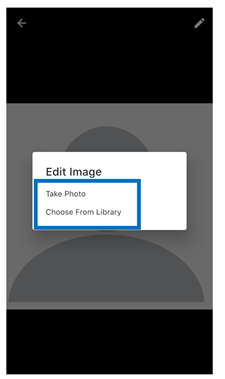
To add your profile photo, touch the Settings icon on the bottom right side of your app homepage to bring up the edit page. Select the camera icon next to the blank profile image.
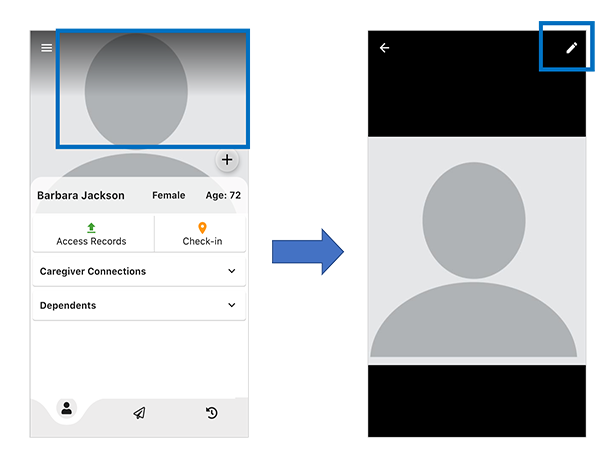
You will then be able to choose to either take a photo or add an image from your phone’s library. Once you find the image that you would like to use, click on it to finish adding it as your new profile photo.
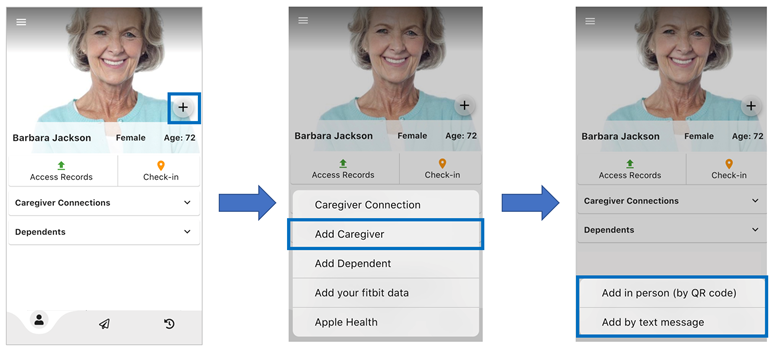
Users can securely share their medical records with providers, caregivers, or family members so that they will be able to see their conditions, medications, and allergies.
Tap on the sharing icon on the top right hand corner of the homepage. Then select “Invite Trusted Person”.
You can share records by QR code (in person) or by text. Choose the option of selecting the phone icon for inviting via text message or the QR code.
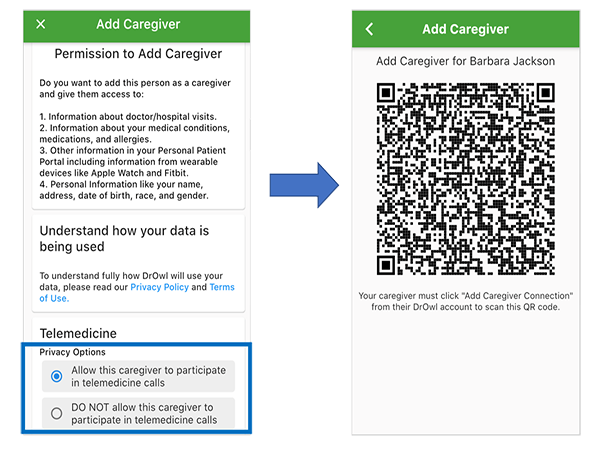
To share your records with another user by QR code (in person), select the QR code option.
The other user will then go on their DrOwl account to scan this QR code. To scan, the invited user must select the “Settings” icon at the bottom of their homepage and then tap “Sharing & Access”. Under “Sharing & Access” they will select “Scan QR”. The camera will populate and they will hover over your QR code. Once the URL link appears, they will tap it.
It will show who you are sharing records with under the section titled “You are sharing with”.
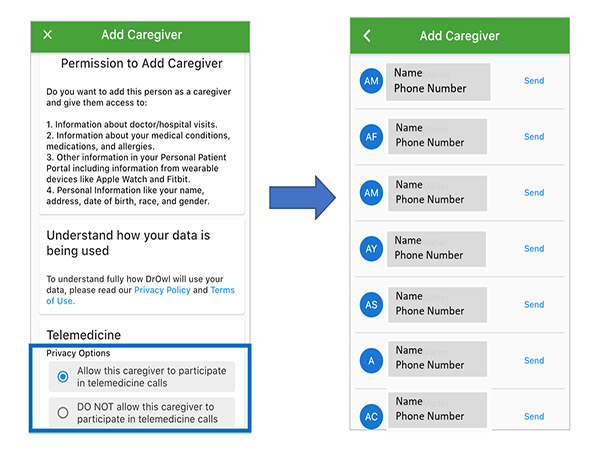
To share your records with another user by phone option, select the phone option. Type in the phone number to share records by text.
The other user will tap the link sent by text message.
To see the records, they will tap on the “Sharing” icon found at the top right corner of the homepage. When the page pulls up, they will select your name from the list under the “Sharing with You” section to see your patient portal.
To stop sharing records with someone you had shared records with, select the “Sharing” icon found on the top right corner of your homepage. Under the section titled “You are sharing with,” select the three dots icon found next to the name of the person you would like to remove.
Tap on “Delete” and then “Delete” again to confirm deletion and stop sharing records with them.


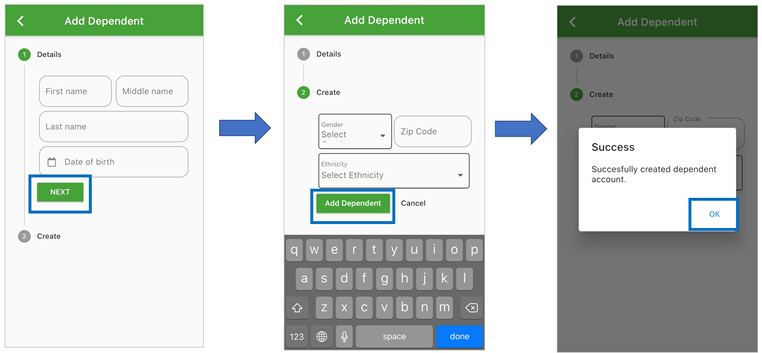
A dependent is simply someone who doesn’t have their own DrOwl account. It’s easy to add minor children or other dependents who cannot access their own medical records digitally to your account.
Go to your wisepatientAI homepage on the app, and then tap “Add Family” at the center.

Then fill in your dependent’s first and last name and date of birth and click next. Add in their gender, zip code, and ethnicity. Then click on the “Add Member” button to finish adding your dependent.
Please repeat this process for every dependent that you would like to add.
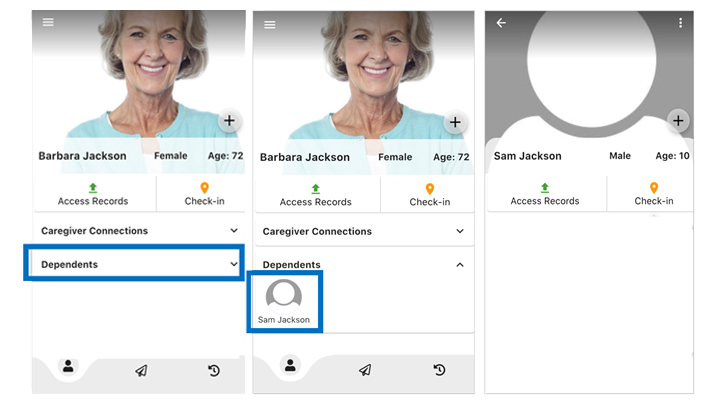
To see your dependent’s profile, go to your homepage on the app, select “Switch” at the top right corner of the main user’s page. Choose the dependent whose profile you’d like to look at, and then click on their name to open up their user profile.
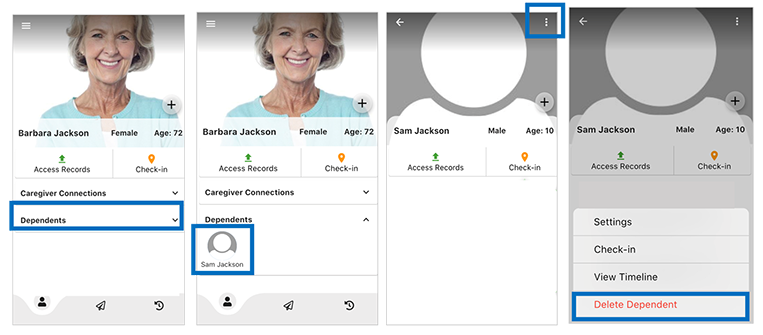
To remove a dependent from your wisepatientAI account, go to the wisepatientAI app homepage and select the “Settings” icon on the bottom right corner.
Choose the dependent that you would like to remove and click on the three dots icon found next to their name.
To add your medical history to DrOwl, go to your homepage on the app, and click on the “plus sign” (Connect) icon found on the bottom middle of your homepage. Choose if you’d like to add your medical files from the VA, Medicare, or one of the thousands of medical providers throughout the U.S. by searching for and clicking on the provider that you’d like to add your medical records from.
Remember that DrOwl is HIPAA-compliant, and you are in control of who you share your information with. Think of it as just the “tool” to help you access and share your medical information as needed.
To sync your medical records from Medicare/Medicaid:
Tap the “plus sign” button. Then type the name of the medical provider that you would like to add into the search bar up at the top of the page.
Go to your DrOwl app homepage and click on the “plus sign” button. Type “CMS” to go to the “CMS Medicare records” choice and click on it to start the process of adding your Medicare records to wisepatientAI. “CMS” is simply Medicare.
You will then be asked to sign in to cms.gov (account.mymedicare.gov) to log into your Medicare/Medicaid account. Put in your username and password and then click on the green login button.

You will then be asked to sign in to cms.gov (account.mymedicare.gov) to log into your Medicare/Medicaid account. Put in your username and password and then click on the green login button.
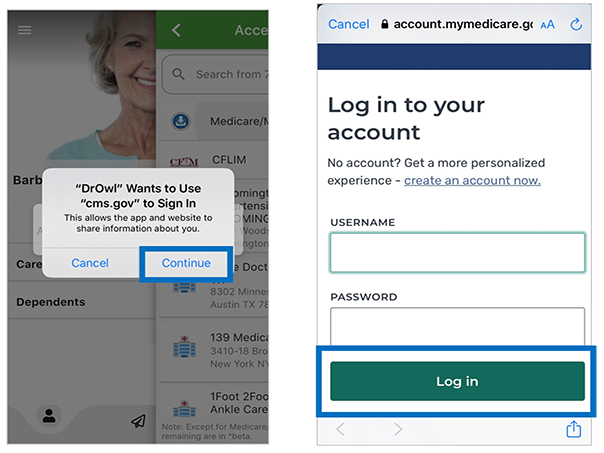
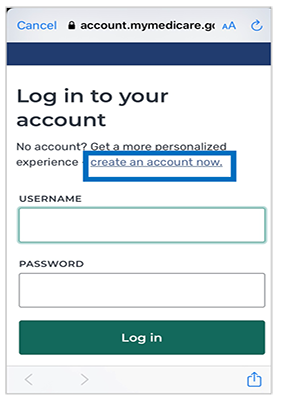
If you don’t have an online CMS.gov (Medicare/Medicaid) account, click on the blue create an account now to create one. And then once you’ve created an account, follow the same steps as above to login into your CMS.go (Medicare/Medicaid) account.
Choose the DrOwl privacy option that you would like, and click on the green allow button at the bottom to finish signing in to Medicare and syncing your medical history to DrOwl.

If you don’t have an electronic CMS (Medicare) account, click on the blue “create an account now” link at the top of the “CMS.gov” log in page to create one.
You will then be asked to fill out the Medicare online form to create an account.
Please note that you will need to keep your red, white, and blue Medicare card handy when you fill out the form because you will need the Medicare number, and coverage start dates for the form.

To fill out the electronic “create account” form, add in your Medicare number, name, email, date of birth, zip code or city, and Part A coverage start date to create your CMS (Medicare/Medicaid) online account.
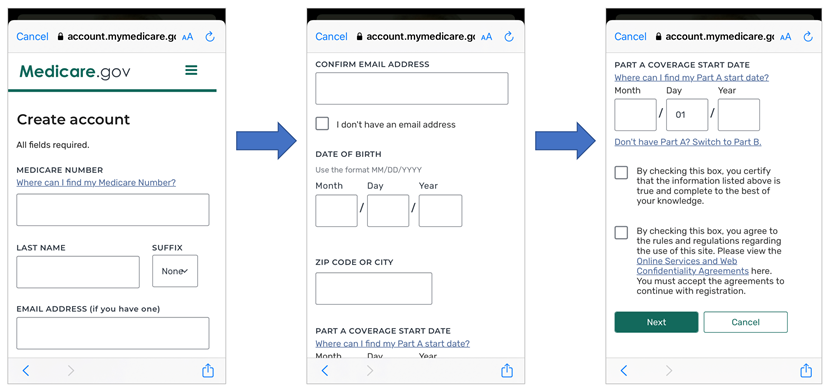
Once you’ve created your account, follow the steps outlined above at the start of this question/answer to sync your Medicare/Medicaid records to DrOwl.
To sync your medical records from one of over 20,000+ medical providers throughout the U.S.:
Tap the “plus sign” button. Then type the name of the medical provider that you would like to add into the search bar up at the top of the page.
Once you’ve found your medical provider, click on their profile and sign into their online portal to add your medical history to wisepatientAI. When you log into your provider’s online account, it syncs your medical records to wisepatientAI. The final step is to click on the “allow” button to share your data with DrOwl.
If you don’t have an online account with your medical provider, simply create one from their website and repeat these steps.
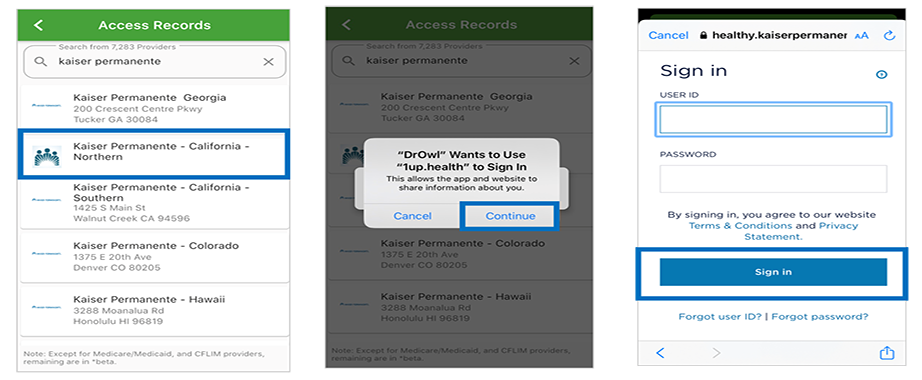
Once you’ve synced your medical history, go to your DrOwl homepage to access it again. Click on your conditions, medications, or allergies to see the detailed medical history all in one secure place.
The DrOwl Patient Portal also includes trusted, doctor-approved sources of information that are customized for each user and makes their medical information easier to understand.
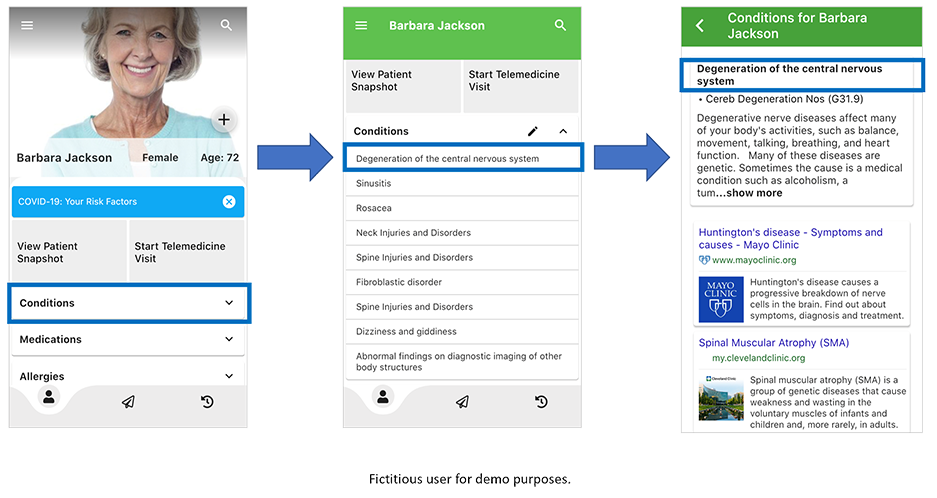
Once a user securely syncs their medical records, DrOwl uses AI and machine learning to provide users with a Patient Portal based on the Patient’s health records that include trusted, doctor-approved sources of information that is customized for each user and makes their medical information easier to understand.
Users can also share their customized Patient Portal with caregivers or family members to include them in the patient’s healthcare decisions.
The DrOwl Patient Snapshot is a summary of the users’ conditions, medications, and allergies and it can be found on the homepage of your wispatientAI app.
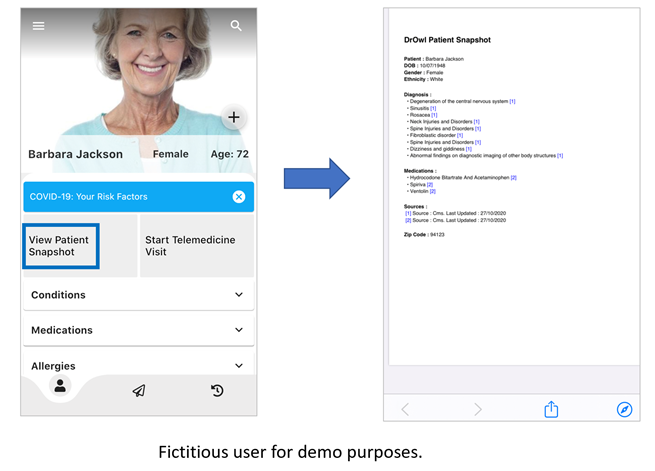
To add something to your conditions, medications, or allergies, start by going to the homepage of your DrOwl app.
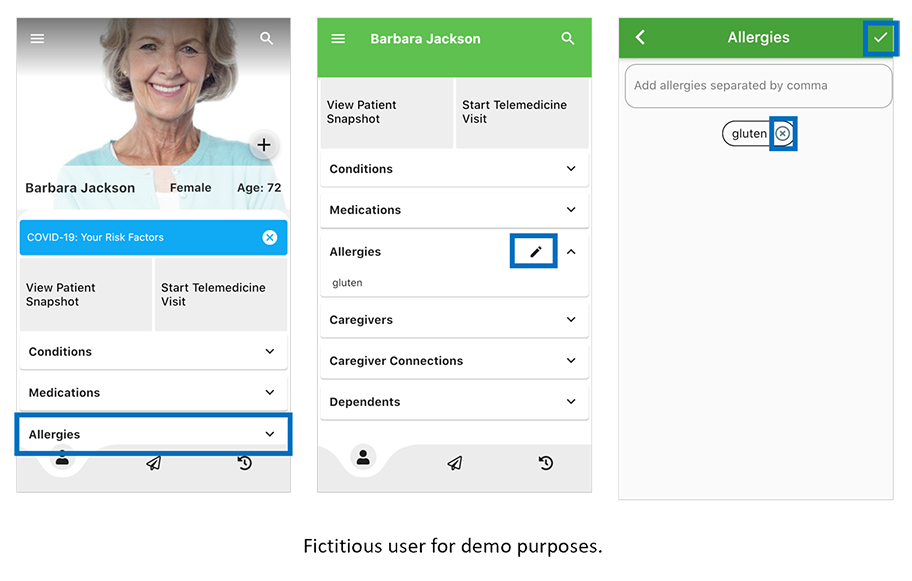
Choose which section you would like to add something to and click it to open up the page for it. Click on the pencil or + icon to add something in. Then select the applicable item or search to add to that section.

To delete something in your conditions, medications, or allergies, start by going to the homepage of your DrOwl app.
Then choose which section you would like to delete something from and click it to open up that section. Click on the pencil icon on the top right-hand side of the screen. Then select the one you would like to delete. Tap the red “delete” button to confirm deletion. Your Patient Snapshot, which is a summary of your conditions, medications, and allergies, will also show what was deleted, along with the date that it was deleted.To remove an incorrect item from your health record permanently, please reach out directly to the provider that entered that record.
To sync your medical records from Medicare/Medicaid:
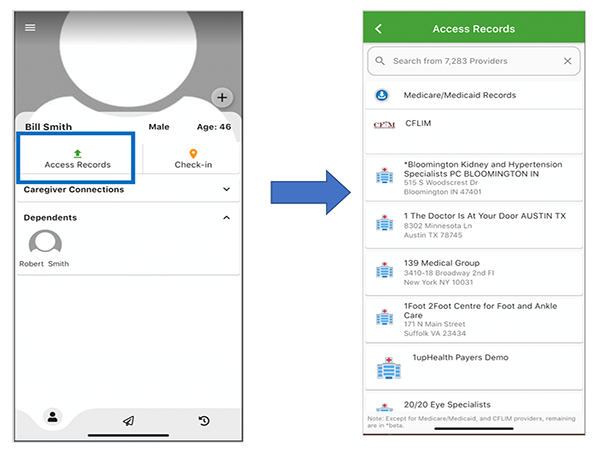
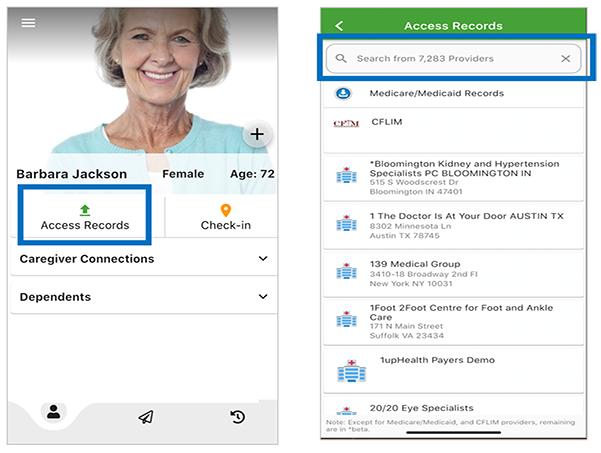
Tap access records to bring up the choices of where you can sync your medical records from including Medicare.
Go to the Medicare records choice under the search bar at the top of the access records page and click on it to choose to sync those medical records to DrOwl.
You will then be asked to sign in to cms.gov (account.mymedicare.gov) to log into your Medicare account. Put in your username and password and then click on the green login button.
You will then be asked to sign in to cms.gov (account.mymedicare.gov) to log into your Medicare account.
If you don’t have an online CMS.gov (Medicare) account, click on the blue create an account now to create one.
Once you’ve put in your user name and password, click on the green login button at the bottom of the page, choose the DrOwl privacy option that you would like, and click on the green allow button at the bottom to finish signing in to Medicare and syncing your medical history to DrOwl.
If you don’t have an electronic CMS (Medicare) account, click on the blue “create an account now” link at the top of the “CMS.gov” log in page to create one.
You will then be asked to fill out the Medicare online form to create an account.
Please note that you will need to keep your red, white, and blue Medicare card handy when you fill out the form because you will need the Medicare number, and coverage start dates for the form.
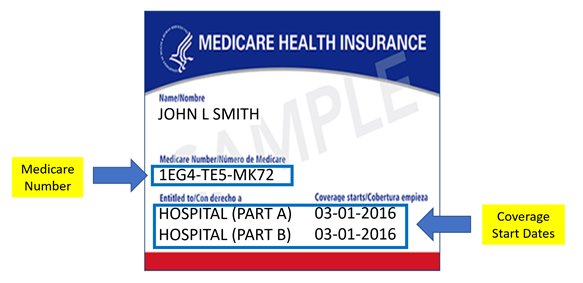
To fill out the electronic “create account” form, add in your Medicare number, name, email, date of birth, zip code or city, and Part A coverage start date to create your CMS (Medicare/Medicaid) online account.

Once you’ve created your account, follow the steps outlined above at the start of this question/answer to sync your Medicare records to DrOwl.
To sync your medical records from one of over 7,200+ medical providers throughout the U.S.:
Click on access records to bring up the choices of where you can sync your medical records from, and then type the medical providers’ name that you would like to sync your medical records from in the search bar up at the top of the access records page.
Once you’ve found your medical provider, click on their profile, and follow the steps to sign in to your account to sync your medical files.

If you are sharing your records by QR code, click on that option and then you’ll see the QR code.
Please note that the other user must go to the Settings icon and tap on “Sharing & Access” in their DrOwl account to scan this QR code for your records to be shared.
If you are sharing your records by text message, click on that option, then click on the person from the phone contacts that you would like to share your records by text.
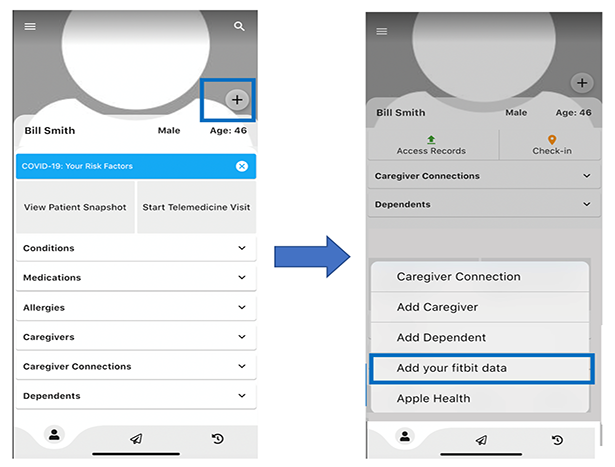
To add your Apple Health or Fitbit data, go to your DrOwl app homepage, and click on “Connect Health Device & Apps” found in the middle of the screen. Then choose “Apple Health” or “Fitbit” when the menu comes up by clicking on it. Log into your Apple Health or Fitbit account to sync your data to DrOwl.